


Photoroom: AI Photo Editor
4.717.98K Reviews
App Specs
- Version
- 2026.30.03
- Updated On
- License
- Free
- Downloads
- 100,000,000+
- Developer
- Photoroom AI Photo Editor
- Categories
- Photography
- Platform
- Android, iOS
Screenshots





 Analysis by AppCompare
I first reached for Photoroom because removing a background on a phone sounded like the sort of job that should take seconds, not a trip through a complicated desktop editor. That quick win is real, but it is not the whole reason I would keep the app around. Its lasting value depends on whether you regularly make images for listings, social posts, or small projects where a clean cutout and a consistent look save time. If you only edit the occasional holiday photo, the novelty may wear off sooner.
Where the first-week appeal comes from
The main draw is how quickly you can move from a camera photo to an image with a more deliberate, finished feel. I find this especially useful for objects photographed at home: a mug, a second-hand jacket, a handmade gift, or a piece of furniture that needs to look clear in a listing. Removing a distracting room from behind the subject can make the result easier to understand without requiring me to learn a full desktop workflow.
A useful habit is to choose the photo before opening the editor with the final use in mind. A centered object with a little space around it is easier to place into a clean composition than a tightly cropped shot with part of the item already cut off. The app can help isolate a subject, but it cannot restore details that were never captured. For better results, I take the photo near a window, keep the object away from clutter, and leave room around its edges.
That small bit of care matters because automatic selection is not the same as a perfect mask. Smooth, clearly separated objects are usually easier to work with than fine hair, transparent glass, thin wires, or busy edges. I would inspect the outline at a closer view before treating a cutout as finished, particularly if the image will be used for a shop listing or printed material. A quick edit is only quick if I do not later have to repair an obvious edge.
A small-business workflow that can stick
For someone selling a few items online, the app can become useful through repetition rather than one spectacular edit. I can photograph several products in similar light, remove their backgrounds, and make the images feel like they belong together. That consistency helps buyers compare items and makes a small catalogue look more considered. It is a practical recurring task, not just a way to decorate a single picture.
There is a trade-off, though: a clean background can improve focus, but it can also remove context that helps explain an item’s size or use. A product isolated on a plain field may look tidy while leaving a buyer unsure how large it is. I would keep at least one contextual photo when scale, texture, or setting matters, then use a cutout for the clearer hero image. The best result is not always the most stripped-down one.
For social content, I would use templates as a starting point rather than a finished identity. They can help me arrange a subject and text when I need a quick story or announcement, but relying on the same ready-made style for every post can make a feed feel interchangeable. Changing the crop, wording, or background treatment gives the design a more personal touch. If brand consistency is important, I would settle on a small set of choices and reuse them deliberately instead of selecting a fresh look each time.
Worth Reading Before You Choose

Flipboard Shows What News Apps Must Do Beyond the Feed

Switching to Android Auto Means Rethinking Your Driving Routine

Google Calendar Makes a Crowded Week Easier to Manage

Ludo King Makes the Most of the Minutes Between Plans

Baby Panda World Brings Quick Play to Modern Phones, but Its Game Library Feels Busy

ESPN’s Live Game View Makes Following Close Games Easier
How it compares with a general photo editor
Photoroom is most convincing when the job begins with a subject that needs separating, arranging, or presenting. A conventional all-purpose photo editor is often the better choice when I want detailed color grading, selective retouching, or precise control over many parts of an image. Those tools can offer a deeper editing process, while Photoroom puts a faster, more guided route to a ready-to-use composition within reach on a phone.
That distinction helps answer a common question: can it replace a full editing suite? I would not treat it as a universal replacement. For a product cutout, a quick promotional image, or a simple social graphic, its focused approach is appealing. For delicate portrait retouching, elaborate composites, or meticulous control of color and light, a dedicated editor gives me more room to work. I choose based on the job rather than expecting one app to do everything equally well.
Who benefits from keeping it installed
The strongest fit is someone who repeatedly makes images for resale, a small business, craft projects, or social media and values speed over exhaustive manual control. A realistic everyday use might be photographing a used lamp after work: I clear a little space, take a well-lit shot, remove the distracting background, check the outline around the shade and cord, then prepare a cleaner image for a listing. That is a modest task, but doing it comfortably from a phone can make the app worth returning to.
By contrast, if my camera roll is mostly family snapshots and I rarely create graphics, I may not need a dedicated cutout workflow often enough to build a habit. I would also steer away if I want every edit to be fully manual or dislike starting from templates and automated suggestions. The app is at its best when its shortcuts match the work I already do; it is less compelling when I have to invent reasons to open it.
What changes after the novelty fades
Photoroom is a photography app from Photoroom AI Photo Editor, and its focus on background removal, image editing, retouching, and logo creation gives it a clear role. It is free to download, with in-app purchases ranging from $5.99 to $249.99 per item, so I would check the available options in the app before building a workflow around a paid feature. The Everyone age rating makes it broadly accessible, while the range of purchase prices is a reason to be thoughtful about what I actually need rather than assuming every tool is included at no cost.
Its store history starts on December 16, 2020, and version 2026.01.01 requires Android 10 or later. I would check that requirement before trying to install it on an older Android phone. The app has a 4.7 average from around 3.7 million ratings and more than 100 million installs, which suggests broad reach, though popularity cannot tell me whether its particular editing style fits my needs. Around 17,000 written reviews add another perspective, but my own decision would still come down to how often I make images that benefit from its focused tools.
One practical question is whether the free option will be enough. That depends on how often I need the app and which tools I use; I would try the everyday workflow first and only consider a purchase if a specific limitation repeatedly gets in the way. That is a better test than paying because a feature looks impressive in a preview. If I only need one clean listing photo now and then, an occasional manual edit elsewhere may be all I need.
Another source of fatigue is the temptation to polish every image beyond what its purpose requires. Background removal, automatic enhancement, text, and stickers can make a quick edit feel entertaining, but piling on effects can distract from the item or message. I try to decide what the viewer should notice first, then stop once the image communicates it clearly. For a product, that usually means a legible silhouette and honest color; for a social post, it means text that remains readable at a glance.
Maintenance is less about technical upkeep than about keeping a repeatable process. I would save the original photo, use a consistent lighting and framing approach, and review the final image at the size people will actually see it. Those habits make edits easier to compare and reduce the chance that a dramatic enhancement changes the appearance of an item. When the work is recurring, a simple routine often matters more than exploring every available control.
There is also a sensible point at which I would choose another tool: when an image needs careful manual masking, complex layers, or fine adjustments that a quick phone workflow cannot comfortably provide. Likewise, a dedicated camera or desktop editor may suit a project that depends on precise color matching or a large batch of highly controlled images. Photoroom’s convenience is valuable, but convenience is not the same as maximum control.
Let's dive into the world of Photoroom AI Photo Editor, an app that's been making waves in the editing scene. If you've ever wished you had a pro-level tool right on your phone to transform your photos, then this app might just be your new best friend.
First Impressions
Upon launching the Photoroom AI Photo Editor, you're greeted with a sleek and intuitive interface. It's not intimidating at all, which is a relief for those of us who aren't exactly Photoshop gurus. The layout is user-friendly, making it easy to navigate through the multitude of features the app offers.
Features That Stand Out
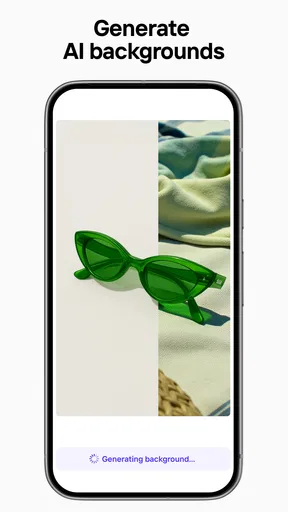
One of the coolest features is the background removal tool. It's incredibly efficient, allowing you to cut out subjects from a photo with just a few taps. Whether it's for a professional-looking product shot or a fun social media post, this tool gets it done in seconds.
The app also offers a variety of templates and designs for different occasions. Want to create a birthday card or a stunning Instagram story? Photoroom has got you covered. The templates are trendy and can be customized to fit your personal style.
Editing Made Easy
What I love most is the ease of editing. Even if you're a complete newbie, the app guides you through the process, offering suggestions and tips along the way. You can adjust brightness, contrast, and saturation with a simple swipe, making your photos pop with minimal effort.
AI-Powered Magic
The AI capabilities of Photoroom are seriously impressive. It can automatically detect and enhance features in your photos, giving them a professional touch. The AI also helps in smart cropping and resizing, ensuring that your images maintain their quality no matter the adjustments.
Some Handy Extras
Aside from the core editing tools, the app includes some fun extras like stickers and text overlays. These can add a playful element to your photos, perfect for personalizing your content.
- Background removal
- Customizable templates
- Automatic photo enhancements
It’s also worth mentioning that the app runs smoothly without any lag, which is crucial when you’re trying to make quick edits on the go.
Wrapping It Up
Overall, Photoroom AI Photo Editor is a fantastic tool for anyone looking to enhance their photo editing game. It's packed with features that cater to both amateurs and seasoned editors, making it versatile and accessible. Whether you're crafting a masterpiece or just need a quick edit, this app has something for everyone. Give it a try, and you might just find yourself hooked!
Pros
- Intuitive interface for easy editing
- Wide range of background removal tools
- High-quality exports for professional use
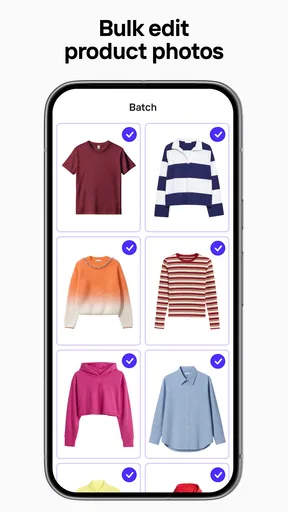
- Supports batch editing for efficiency
- Regular updates with new features
Cons
- Limited free version features
- Occasional slow processing on older devices
- Subscription required for full access
- Watermarks on free exports
- Requires internet for some functions
FAQs for Photoroom: AI Photo Editor
What features does Photoroom AI Photo Editor offer?
Photoroom AI Photo Editor provides a robust set of features including automatic background removal, a wide selection of templates, and tools for creating professional-looking images. Users can easily enhance product photos, create social media content, and design marketing material with its intuitive interface and AI-powered editing capabilities.
Is Photoroom AI Photo Editor user-friendly for beginners?
Yes, Photoroom AI Photo Editor is designed with a user-friendly interface, making it accessible for beginners. The app guides users through the editing process with simple tools and tutorials. Its AI-driven features help automate complex tasks, allowing users with little to no editing experience to produce high-quality images quickly.
Does Photoroom AI Photo Editor require an internet connection?
While some features of Photoroom AI Photo Editor can be used offline, an internet connection is necessary for accessing certain functionalities, like downloading additional templates or updates. The app performs optimally with a stable internet connection, especially for tasks involving AI processing and cloud-based resources.
Are there any in-app purchases or subscription models?
Photoroom AI Photo Editor offers a freemium model, providing basic features for free. However, advanced tools and exclusive templates are available through in-app purchases or a subscription. Users can opt for a monthly or annual plan to unlock premium content and enjoy an ad-free experience.
How does Photoroom AI ensure privacy and data security?
Photoroom AI Photo Editor prioritizes user privacy and data security by implementing robust encryption protocols. The app ensures that personal data and edited images are protected. Users can manage their privacy settings and are assured that their information is not shared with third parties without consent.


